Signing in
Your new address becomes your Microsoft sign-in name when IT switches your account this weekend. Your password stays the same.
My Windows PIN doesn't work
First try your usual picture and PIN. If it works, you're done.
If this PC normally uses a short username with a backslash (\), read this first.
If your PIN doesn't work or isn't available:
- Choose Other user.
- Enter your new address.
- Enter your usual password.
- If asked to set up a PIN, follow the prompts with your phone handy.
If your desktop or files look empty, stop and contact IT. Don't copy files around or set things up again.
If your password is refused, stop and contact IT. Don't keep guessing.
An old address under Access work or school can just be a label.
Windows normally uses a short username
On office PCs where Windows uses a name with a backslash (\), sign in exactly as before. Don't switch that Windows sign-in to your new email address.
Use your new address when Outlook, Teams or OneDrive asks.
Which address do I use on the web?
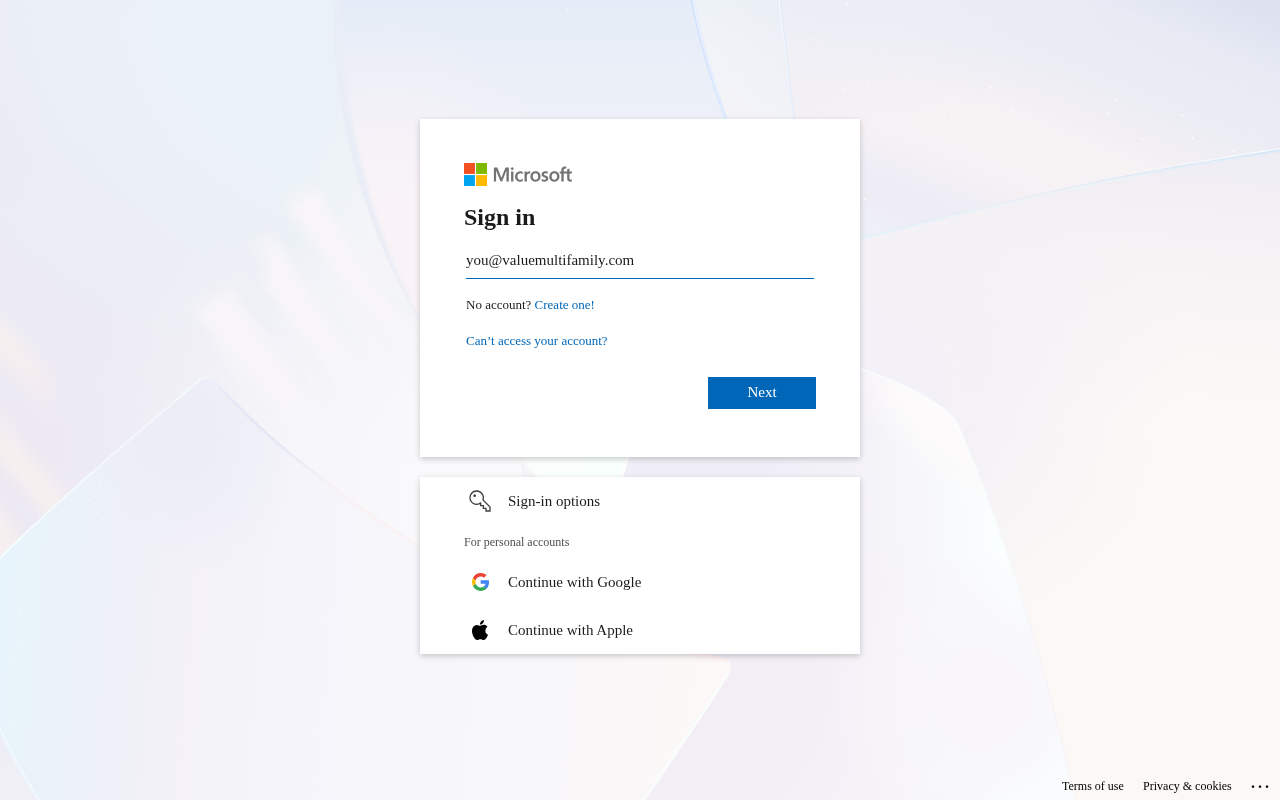
- Enter your new address on the Microsoft sign-in page.
- Enter your usual password.
If the browser fills in your old address, replace it. You can also update its saved login:
Edge
- Open Settings.
- Choose Profiles.
- Choose Passwords.
- Find the Microsoft entry.
- Edit the username to your new address.
Chrome
- Open Settings.
- Choose Autofill and passwords.
- Open Google Password Manager.
- Update the Microsoft saved login to your new address.
Word, Excel or PowerPoint shows my old address
Office keeps working. To update the displayed address on Windows:
- Open File.
- Choose Account.
- Click Sign out.
- Click Sign in to use your new address.
For Mac, use these Office steps.
If a file in Recent won't open, open it from OneDrive again.
Authenticator didn't send an approval
- Dismiss any sign-in notification.
- Open Microsoft Authenticator.
- Choose Check for notifications.
- Approve your sign-in.
Or use a code:
- Choose Use a verification code on the sign-in screen.
- Enter the six-digit code from your work account in Authenticator.
Two accounts or an old address?
Leave both entries. They still work. Contact IT for cleanup.
Outlook or Teams keeps asking on your phone?
Removing the work account from Authenticator may help, but can lock you out. Contact IT before removing your work account from Authenticator. Afterwards, this phone's Authenticator approvals and codes won't work until it's set up again. IT will help you do that.
If Authenticator is your only way to approve sign-ins, don't remove it. Contact IT.
Phone sign-in fails?
- Open the work account's menu in Authenticator.
- Choose Disable phone sign-in.
Security keys keep working, even if the account name looks old.
Company Portal asks me to register again
- Open Company Portal.
- Sign in with your new address.
- Follow the prompts to register again.
If registration fails, contact IT.
Azure VPN asks me to sign in
- Sign in with your new address.
Your VPN setup stays the same. If the new address doesn't work, contact IT.
Remote desktop / FACTS says my login failed
Use your new address. If a saved login fails:
- Open Remote Desktop Connection.
- Click Show Options.
- Under Logon settings, click delete to clear the saved login.
- Connect again.
- Sign in with your new address and usual password.
- Select Remember me.
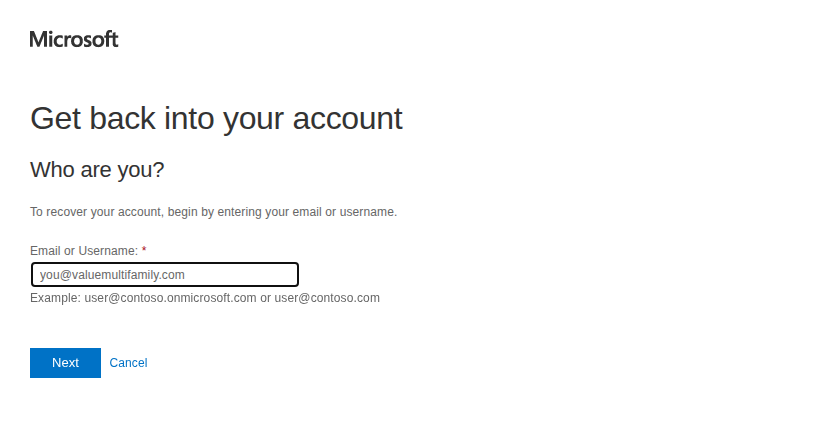
I don't know my password or I'm locked out
Don't keep guessing; repeated tries can lock your account.
- Open Microsoft password reset.
- Use your new address to follow the reset prompts.
If you can't verify your identity or reset the password, contact IT.